Monday, May 23, 2011

25 Elegant jQuery Tooltips Plugins to Enhance Your Website Look

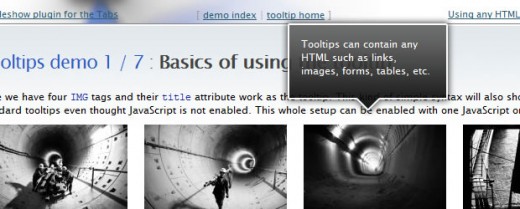
jQuery tooltips can really help usability and user experience, by providing useful clues, information, tips and help when using a site. Today, we are presenting best jQuery tooltip plugins for making your site more user friendly and attractive. So start hovering and give your site a breathing space and readers the information they want. I hope you like and comment about it.
Related Posts Links:

1. jqTooltip

jqTooltip

2. Pop! Simple Pop Menus with jQuery

Pop! Simple Pop Menus with jQuery

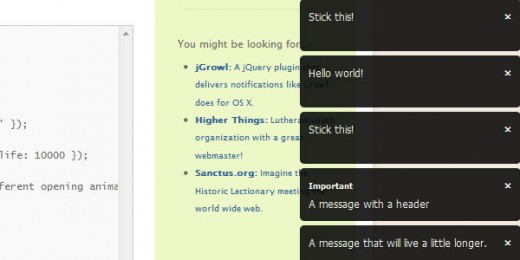
3. jGrowl

jGrowl

4. ProtoTip 2

ProtoTip 2

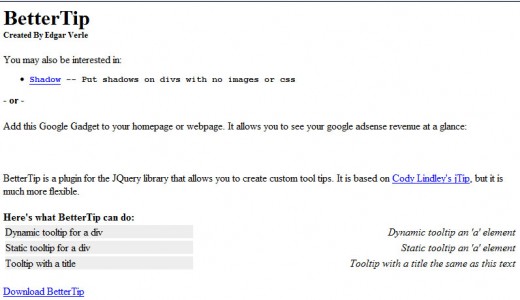
5. BetterTip

BetterTip

6. Tipsy – Facebook-Style Tooltip Plugin for jQuery

Tipsy – Facebook-Style Tooltip Plugin for jQuery

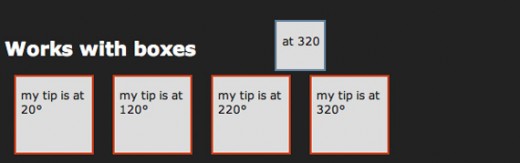
7. ClueTip

ClueTip

8. jHelperTip 1.0 – The Multi-Use Tooltip for jQuery

jHelperTip 1.0 – The Multi-Use Tooltip for jQuery

9. Build a Better Tooltip with jQuery Awesomeness

Build a Better Tooltip with jQuery Awesomeness

10. BeautyTips

BeautyTips

11. jQuery Tooltip – Tooltips done right

jQuery Tooltip – Tooltips done right

12. jQuery Ajax Tooltip

jQuery Ajax Tooltip

13. Shiny Tooltips

Shiny Tooltips

14. qTip – The jQuery Tooltip Plugin

qTip – The jQuery Tooltip Plugin

15. Easiest Tooltip and Image Preview Using jQuery

Easiest Tooltip and Image Preview Using jQuery

16. Orbital Tooltip

Orbital Tooltip

17. jQuery (mb)Tooltip 1.6

jQuery (mb)Tooltip 1.6

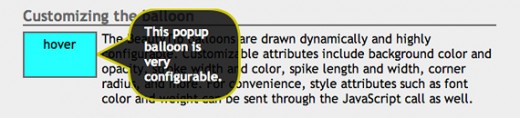
18. Coda Popup Bubbles

Coda Popup Bubbles

19. Simpletip

Simpletip

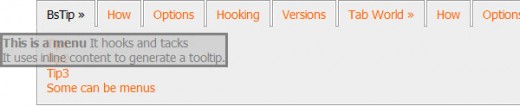
20. bQuery :: Good Tip & Tabworld

bQuery Good Tip & Tabworld

21. Digg-style post sharing tool with jQuery

Digg-style post sharing tool with jQuery

22. Generic Popups

Generic Popups

23. TipTip

TipTip

24. jQuery Horizontal Tooltips Menu Tutorials

jQuery Horizontal Tooltips Menu Tutorials

25. jQuery Form Validation and Tooltip

jQuery Form Validation and Tooltip


Reference:  http://www.tutorialchip.com

Understanding JSON: the 3 minute lesson

If you are anything like me (and I fear that you are) then this is your experience with JSON so far:
  1. Two months ago you'd never heard of JSON
  2. One month ago you'd heard the term but paid no attention
  3. One week ago you'd heard it mentioned a few times and started to think, right... some more crap to learn
  4. Today you woke up with an alarm bell ringing in the back of your mind that said WHAT THE BLOODY HELL IS THIS JSON THING AND WHY IS IT EVERYWHERE ALL OF A BLOODY SUDDEN!
Well I had a slow bus ride home tonight (friday is always slow) and i took a pile of "JSON" tutorials with me. So now I can gently lead you through some BabySteps in JSON.
here we go...

What does it stand for?

JavaScript Object Notation. [A ridiculous name. It should be called Lightweight Ecmascript Object Notation, or 'LEON' for short. ;-)]

And what does that mean?

JSON is a syntax for passing around objects that contain name/value pairs, arrays and other objects.
Here's a tiny scrap of JSON:
{"skillz": {
 "web":[
  {"name": "html", 
   "years": "5"
  },
  {"name": "css", 
   "years": "3"
  }],
 "database":[
  {"name": "sql", 
   "years": "7"
  }]
}}
You got that? So you'd recognise some JSON if you saw it now? Basically:

Squiggles, Squares, Colons and Commas

  1. Squiggly brackets act as 'containers'
  2. Square brackets holds arrays
  3. Names and values are separated by a colon.
  4. Array elements are separated by commas

JSON is like XML because:

  1. They are both 'self-describing' meaning that values are named, and thus 'human readable'
  2. Both are hierarchical. (i.e. You can have values within values.)
  3. Both can be parsed and used by lots of programming languages
  4. Both can be passed around using AJAX (i.e. httpWebRequest)

JSON is UNlike XML because:

  1. XML uses angle brackets, with a tag name at the start and end of an element: JSON uses squiggly brackets with the name only at the beginning of the element.
  2. JSON is less verbose so it's definitely quicker for humans to write, and probably quicker for us to read.
  3. JSON can be parsed trivially using the eval() procedure in JavaScript
  4. JSON includes arrays {where each element doesn't have a name of its own}
  5. In XML you can use any name you want for an element, in JSON you can't use reserved words from javascript

But Why? What's good about it?

When you're writing ajax stuff, if you use JSON, then you avoid hand-writing xml. This is quicker.
Again, when you're writing ajax stuff, which looks easier? the XML approach or the JSON approach:

The XML approach:

  1. bring back an XML document
  2. loop through it, extracting values from it
  3. do something with those values, etc,

versus

The JSON approach:

  1. bring back a JSON string.
  2. 'eval' the JSON

So this is Object-Oriented huh?

Nah, not strictly.
JSON is about as object oriented as VB6. It provides a nice encapsulation technique, that you can use for separating values and functions out, but it doesn't provide anything inheritence, polymorphism, interfaces, or OO goodness like that.
It is certainly a step in the right direction though, making javascript easier to maintain, share and reuse.
Thomas Frank wrote a nifty little javascript library called classyJSON for adding inheritance and scoping capabilities to JSON code.

And it's just for the client-side right?

Yes and no. On the server-side you can easily serialize/deserialize your objects to/from JSON. For .net programmers you can use libraries like Json.net to do this automatically for you (using reflection i assume), or you can generate your own custom code to perform it even faster on a case by case basis.

Three minutes is nearly up....

As near as a I can tell, JSON was invented by a guy called Douglas Crockford. Read his website if you want, he's pretty funny.

Now Go And Read Someone Who Knows

(Retrieved from Delicious using JSON!)
Reference: http://secretgeek.ne

30 Tips To Improve Javascript Performance

Are you a webmaster or web developer? Want to create super-fast websites?
You may have Monitis’s recent posts sharing tips for improving the performance of Windows Server 2008 and Linux Servers, and we hope that they’ve helped you.
Now, we’re moving on to Javascript — that wonderful — but complicated — technology that enriches sites but can often get in the way of their efficient operation and slow down the user experience. And improving the user experience — whether it’s consumers or sysadmins — is our mission at Monitis. Why? Because it has been proven that optimal end-user experience improves site conversion rates, Google search rankings and web visitor satisfaction rates. What does that mean? Better business for you and your company!
Of course, aside from these series of posts, there are many ways to improve your computing experience, for example, checking the performance of web page loads. Website administrators can use Monitis’ instant web page load test or use continous real browser full web page monitoring. Web load are affected by many factors, including network speed, hosting location, server performance, application performance, web page design and optimization.
Below we have covered the tips to improved Javascript performance. Again, it may help webmasters and web developers create fast websites and deliver top-notch user experience.

Tip #1 – Evaluate Local Variables

(http://blogs.msdn.com/b/ie/archive/2006/08/28/728654.aspx)

Primarily, specific to IE, because local variables are found based on the most to the least specific scope and can pass through multiple levels of scope, the look-ups can result in generic queries. When defining the function scope, within a local variable without a preceding var declaration, it is important to precede each variable with var in order to define the current scope in order to prevent the look-up and to speed up the code.

Tip #2 – Create shortcut codes to speed up coding

(http://www.spoonfeddesign.com/4-easy-tips-to-improve-javascript-efficiency)

For useful codes that are constantly being used, speeding up the coding process can be achieved by creating shortcuts for longer codes, for example, document.getElementById. By creating a shortcut, longer scripts will not take as long to code and will save time in the overall process.

Tip #3 –Manipulate element fragments before adding them to DOM

(http://www.jquery4u.com/dom-modification/improve-javascript-performance)

Before placing the elements to the DOM, ensure that all tweaks have been performed in order to improve JavaScript performance. This will eliminate the need to set aside Prepend or Append jQuery APIs.

Tip #4 – Save bytes by using Minification

(http://sixrevisions.com/web-development/10-ways-to-improve-your-web-page-performance)

Reduce the file size of your JavaScript documents by removing characters (tabs, source code documents, spaces etc.) without changing the functionality of the file.
There are a number of minification tools that can assist in this process, and have the ability to reverse the minification. Minification is the process of removing all unnecessary characters from source code, without changing its functionality.

Tip #5 –Don’t use nested loops if not required

(http://www.techstrut.com/2009/08/04/10-javascript-performance-tips)

Avoid unwanted loops, such as for/while, in order to keep the JavaScript linear and to prevent from having to go through thousands of objects. Unwanted loops can cause the browser to work harder to process the codes and can slow down the process.

Tip #6 – Cache objects to increase performance

(http://www.techstrut.com/2009/08/04/10-javascript-performance-tips)

Many times, scripts will be repeatedly used to access a certain object. By storing a repeated access object inside a user defined variable, as well as using a variable in subsequent references to that object, performance improvement can be achieved immediately.

Tip #7 – Use a .js file to cache scripts

(http://www.javascriptkit.com/javatutors/efficientjs.shtml)

By using this technique, increased performance can be achieved because it allows the browser to load the script once and will only recall it from cache should the page be reloaded or revisited.

Tip #8 – Place JavaScript at the bottom of the page

(http://developer.yahoo.com/blogs/ydn/posts/2007/07/high_performanc_5)

Placing the scripts as low as possible in the page will increase the rendering progress, and also increase download parallelization. The result is that the page will seem to load faster, and in some cases it can also save on the total amount of code needed.

Tip #9 – Use jQuery as a framework

(http://www.techstrut.com/2009/08/04/10-javascript-performance-tips)

Used for the scripting of HTML, jQuery is an easy to use JavaScript library that can help to speed up any website. jQuery provides a large number of plug-ins that can quickly be used, by even novice programmers.

Tip #10 – Compress your files with GZip

(http://devmoose.com/coding/10-ways-to-instantly-speed-up-your-website)

GZip can reduce a JavaScript file considerably, saving bandwidth, and accelerate the response time. JavaScript files can be very large, and without compression, it can bog down any website. Smaller files provide a faster and more satisfying web experience.

Tip #11- Don’t use “With” keyword

(http://blogs.msdn.com/b/ie/archive/2006/08/28/728654.aspx)

The “With” keyword is considered a black-sheep because it suffers from several flaws that can be very frustrating. Although it makes the process of working with local properties simpler, “With” can make looking up variables in other scopes more expensive.

Tip #12 – Minimize requests for HTTP

(http://www.websiteoptimization.com/speed/tweak/http)

Minimize HTTP requests to render pages by combining external files and including JavaScript directly within XHTML pages. Each time a unique HTTP takes a trip to a server, the result is a large number of delays.

Tip #13 – Implement Event Delegation

(http://www.djavaweb.com/blog/75-speed-up-your-webdevelop-smart-event-handlers.html)

With Event Delegation, it becomes easier to use a single event handler to manage a type of event for the entire page. Without using Event Delegation, large web applications can grind to a halt because of too many event handlers. Benefits of Event Delegation include; less functionality to manage, fewer ties between code and DOM, and less memory required to process.

Tip #14 – Don’t use the same script twice

(http://www.abhishekbharadwaj.com/2010/12/speed-up-your-website-avoid-duplicate-scripts)

Duplicate scripts will have a significant impact on performance. Duplicate scripts will create unnecessary requests on HTTP, especially in the IE browser. Using a SCRIPT tag, in an HTML page, will help to avoid accidentally duplicating scripts.

Tip #15 – Remove Double Dollar $$

(http://www.mellowmorning.com/2008/05/18/javascript-optimization-high-performance-js-apps)

Using “double dollar $$” function is not necessarily needed, when it comes to improving the speed of a website.

Tip #16 – Creating reference variables

(http://mondaybynoon.com/2009/04/27/a-couple-of-quick-tips-for-javascript-optimization)

When working with a specific node repeatedly, it is best to define a variable with that particular note, instead of switching to it repeatedly. This is not a significant enhancement but it can have a bigger impact on a large scale.

Tip #17 – Increase speed of Object Detection

(http://dean.edwards.name/weblog/2005/12/js-tip1)

A more efficient method to using Object Detection is to use a code created dynamically based off of object detection, rather than performing object detection inside of a function.

Tip #18 – Write effective Loops

(http://robertnyman.com/2008/04/11/javascript-loop-performance)

Depending on the browser, the method used to write Loops can have a great effect on the performance of a site. Improper writing of loops can slow down pages with lots of queries and running a number of loops in parallel.

Tip #19 – Shorten Scope Chains

(http://homepage.mac.com/rue/JS_Optimization_Techniques)

Global scopes can be slow, because each time a function executes, it cause a temporary calling scope to be created. JavaScript searchers for the first item in the scope chain, and if it doesn’t find the variable, it swells up the chain until it hits the global object.

Tip #20 – Index directly to NodeLists

(http://homepage.mac.com/rue/JS_Optimization_Techniques)

NodeLists are live and can take up a lot of memory, as they are updated when an underlying document changes. Its quicker to index directly into a list, as a browser will not need to create a node list object.

Tip #21 – Don’t use ‘eval’

(http://www.javascripttoolbox.com/bestpractices/#eval)

Although the “eval” function is a good method to run arbitrary code, each string that is passed to the eval function has to be parsed and executed on-the-fly. This cost has to be paid every time the execution reaches an eval function call.

Tip #22 – Use Function Inlining

(http://portal.acm.org/citation.cfm?id=844097)

Function Inlining helps to eliminate call costs, and replaces a function call with the body of the called function. In JavaScript, performing a function call is an expensive operation because it takes several preparatory steps to perform: allocating space for parameters, copying the parameters, and resolving the function name.

Tip #23 – Implement Common Sub-expression Elimination (CSE)

(http://sunilkumarn.wordpress.com/2010/10/19/common-subexpression-elimination-cse)

Common sub-expression elimination (CSE) is a performance-targeted compiler optimization technique that searches for instances of identical expressions and replaces them with a single variable holding the computed value. You can expect that using a single local variable for a common sub-expression will always be faster than leaving the code unchanged.

Tip #24 – Build DOM node and all its sub-nodes offline

(http://archive.devwebpro.com/devwebpro-39-0030514OptimizingJavaScriptforExecutionSpeed.html)

When adding complex content such as tables to a site, performance is improved by adding complex sub-trees offline.

Tip #25 – Try not to use global variables

(http://wiki.forum.nokia.com/index.php/JavaScript_Performance_Best_Practices#JavaScript_Performace_Best_Practices)

Because the scripting engine needs to look through the scope, when referencing global variables from within function or another scope, the variable will be destroyed when the local scope is lost. If variables in global scope cannot persist through the lifetime of the script, the performance will be improved.

Tip #26 – Use primitive functions operations vs. function calls

(http://wiki.forum.nokia.com/index.php/JavaScript_Performance_Best_Practices#JavaScript_Performace_Best_Practices)

Improved speed can be achieved in performance critical loops and functions by using equivalent primitive functions instead of function calls.

Tip #27 – Don’t retain alive references of other documents

(http://dev.opera.com/articles/view/efficient-javascript/?page=4#docreferences)

By not retaining alive references of other documents after the script has finished with them, faster performance will be achieved. This is because any references to those objects from that document are not to be kept in its entire DOM tree, and the scripting environment will not be kept alive in RAM. Thus the document itself is no longer loaded.

Tip #28 – Use XMLHttpRequest

(http://dev.opera.com/articles/view/efficient-javascript/?page=4#docreferences)

XMLHttpRequest helps to reduce the amount of content coming from the server, and avoids the performance impact of destroying and recreating the scripting environment in between page loads. Its is important to ensure that XMLHttpRequest is supported, or otherwise it can lead to problems and confusion.

Tip #29 – Avoid using try-catch-finally

(http://dev.opera.com/articles/view/efficient-javascript/?page=2)

Whenever the catch clause is executed, where the caught exception object is assigned to a variable, “try-catch-finally” creates a new variable in the current scope at runtime. A number of browsers do not handle this process efficiently because the variable is created and destroyed at runtime. Avoid it!

Tip #30 – Don’t misuse for-in

(http://dev.opera.com/articles/view/efficient-javascript/?page=2)

Because the “for-in” loop requires the script engine to build a list of all the enumerable properties, coding inside for loop does not modify the array. It iterates pre-compute the length of the array into a variable len inside for loop scope.


Reference: Montis blog

Top 10 Reasons Why Firefox is still Better than Chrome for Web Development

Browsers market share evolution

About one year ago I wrote another post telling what many of us already knew, which is that PHP developers are switching to Google Chrome as their browser to access the Web.
As you may notice in the following chart, that trend continues to be true this year. These numbers are taken from the statistics of developers that logged in the PHPClasses site during the last 30 days.
BrowserMay 2009May 2010May 2011Change
Mozilla Firefox68.0%63.5%57.3%-6.2%
Microsoft Internet Explorer18.5%13.6%8.9%-4.7%
Google Chrome6.0%15.7%28.1%+12.4%

As you may see, Chrome almost doubled its share in one year, while Internet Explorer dropped to a little more than half. Firefox also dropped a bit.
The gain of Chrome is more than the loss of Firefox and Internet Explorer. This means that Chrome also gained share lost by other browsers.

Top 10 Reasons Why Firefox is still Better Than Chrome for Web Development

Given the fact that Google Chrome share is continuing to grow a lot, you may wonder about the reasoning for this article title. The fact that Chrome is continuing to get more popular for Web browsing, it does not mean that when Web developers are working on their projects they still use Chrome.
For me that is not the case. Often when I am doing Web development work, I feel the need to switch to Firefox for the reasons that I am listing below.
Keeping in mind that this article is not exactly a rant against Google. Google gaves us, Web developers, a lot to be thankful to them, but when comes to Chrome there is still a lot to desire.
I decided to write this post now in the hope that maybe somebody at Google reads it and does something to address these issues that more than often really upsets many of us, as we do not want to be switching browsers all the time.

1. HTML viewing

When the code of our sites has bugs, often it generates HTML code that is incorrect or even invalid. So we need to examine the HTML code to help figuring what is wrong.
Firefox has this awesome feature that lets you select a portion of a page and it shows the exact HTML that corresponds to selected page portion. There is no such feature in Chrome.
The best you have is an Inspect Element feature that lets you find the HTML code for the page element under your mouse pointer. It is not the same thing. If I selected a region of the page, I would like to view the whole region HTML, not just a single element.
Another annoyance is that Chrome tries to beautify the HTML code. This means that if you have malformed HTML, you will not see where it is malformed, as Chrome will show you a beautified version of the HTML code after have been already fixed. I wish there was an option to disable beautification.

2. HTML Validation

Another great feature of Firefox is the possibility to show you any HTML validation errors that you may have. Actually, this is a feature provided by the HTML Validator extension.
I tried several extensions for the same purpose in Chrome but nothing was nearly as good. Some only used the W3C validation service passing the page URL, which is not good because when you are developing a non-public page, the W3C service cannot access it, neither can access it as an eventually logged user of the site you are developing.
Other extensions tried to copy the currently loaded page and pass it to the validator service but none showed the eventually invalid HTML as the Firefox HTML Validator extension does.
Also this Firefox extension does not rely on an external validation service. This means that you can validate your pages even if you currently do not have Internet Access.
So, for all these reasons, an equivalent version of Firefox HTML Validator extension is seriously needed for Chrome.

3. Disable JavaScript

Sometimes you need to test your site with JavaScript disabled. The only way to disable it in Chrome is going to preferences and disable it there. This is a real drag.
In Firefox you can use the Web Developer extension by Chris Pederick to add a button to the browser toolbar to quickly disable and re-enable JavaScript any time you want.
For Chrome there is also the Web Developer extension by the same developer but it does not provide a means to disable JavaScript.
The problem is due to a limitation of the Chrome API exposed to extensions. It does not provide a way to disable JavaScript from extensions.
There is a feature request for the Chromium project to implement the necessary support to disable JavaScript. The feature implementation was even assigned about 1 year ago to be implemented, but it never happened. Oddly users were disallowed to post further comments to that feature request.

4. Empty the browser cache

Sometimes you need to force the cache of the browser to be emptied, so fresh content is retrieved from the server of the site you are developing.
It is the same limitation as of disabling JavaScript. You cannot do it from an extension. You need to do it by going to the Chrome preferences.
There is also a feature request to enable support to empty the browser cache from an extension. This one was requested more than 2 years ago, but only 3 months ago it was assigned to be implemented.

5. Switching the browser user agent identification

Sometimes you need to access your site in development pretending to be using a different browser, so you can check if your site adapts to the current browser as you expect.
For instance, if you are serving an RSS feed to be handled by Feedburner, you need to redirect all browsers to the Feedburner feed URL, unless the current user agent is Feedburner itself checking if your feed was updated. So, it would be useful if you could make the browser pretend to be Feedburner, so you can check if it is working well as needed.
In Firefox you can use the User Agent Switcher extension also by Chris Pederick. In Chrome there is also an extension named User Agent Switcher. The problem is that it does not work. Well it does, but not in the way you expect.
This extension can only change the browser identification exposed to JavaScript. This means that the HTTP requests sent to the server will not use the user agent identification string that you need to be sent.
I suspect there is a feature request to have this implemented in the Chromium, but I did not find it. Until that feature is implemented, we have always to resort to Firefox which works well as necessary with the User Agent Switcher extension.

6. Buttons in the status bar

One good thing about Firefox and most other browsers is that you can have useful buttons below in the browser window in the status bar. That is were the Firebug and other useful extension buttons appear. When you want to use them, it is very easy to click a button to open Firebug and debug your JavaScript code.
Chrome practically eliminated the status bar. It is only used to show some temporary messages. If you want to open the developer tools to debug your JavaScript code or check the page HTML, you need either to find that function in the menus or memorize a non-trivial key sequence.
Eventually you will get used to this but it would be much more user-friendly if you could reach those extensions if they appeared in the status bar below or even at the browser window top.

7. Caching of posted pages in the browser history

Sometimes you need to go back in your browser history to a page that was presented after submitting a form using the POST method. However, you do not want to repeat the request that was sent to the server when that page was served.
In some cases, which I could not determine the exact circumstances, Chrome asks if I want to post the form again and does not show me the page in the browser history if I do not accept to post the form again. Firefox does not have this problem. It always shows me the page in the browser history, even if it was the result of a posted form.

8. The Flash extension crashes frequently

I do not develop sites in Flash. However, sometimes I need to access certain Google sites that provide useful information presented using Flash. That is the case of Google Analytics and Google Webmaster Tools.
Unfortunately, the Flash extension shipped with Chrome crashes frequently. That does not happen when using Firefox to access the exact same pages.
I would prefer that Google did not use Flash in such sites. Most of what they present did not really need to use Flash. I assume that changing such sites to not rely on Flash would take Google more development resources than they want to spend. In that case, it is necessary that Google fixes Flash extension that ships with Chrome.

9. HTML editing generates malformed HTML

Nowadays, most sites that publish HTML content submitted by the users, provide a rich text WYSIWYG editor interface. This is done setting the contenteditable HTML attribute, for instance of a div tag.
The problem is that HTML editors in Chrome are still quite buggy. Often if you copy and paste HTML in an editor results in malformed HTML.
I have seen HTML meta tags appearing out of nowhere in the middle of HTML pasted after being copied from other parts of the same HTML document being edited. I also often see bogus CSS styles named Apple-style-span appearing in pasted HTML, when such styles never existed before in the HTML being edited.
This is just a reminder that you need to have an HTML validator and filtering system on your server side scripts to clean-up any messy HTML submitted to the served after being edited on Chrome.
It is always a good idea to use such filters, as there is no guarantee that all browsers will always submit valid HTML. But the fact is that if you use Firefox you do not seem to get such malformed HTML.

10. No feedback to bug reports

I tried to report some of the problems above using Chrome built-in bug reporting system. You go on the menu Tools and then Report an Issue, and it shows a nice bug report page which may even include a screenshot of the current page you were browsing.
The problem is that I never got any feedback of my bug reports. So I do not know if the bugs were submitted and received properly, let alone having been seen and acted upon.
I do know if the time I spent trying to describe the bug reports was worth it. I suspect that it would probably be more efficient if I reported any bugs to the Chromium project directly.
Maybe I am getting this wrong, but sometimes I get the feeling that Google people does not see the act of providing feedback to the user community as an important thing.
This reminded me about the AppEngine issue of supporting PHP. It was the most requested feature for the AppEngine project. Google people decided to not support PHP in any sense, giving as justification the lack of resources. That is a bit odd thing to say for a company that makes many billion dollars in profits every year.
They also disallowed anybody from posting any further comments to that feature request. It seems that it is not relevant for Google what the PHP developers community can provide of feedback, despite it is probably the largest Web developers community.

Conclusions

This article is mostly my opinion and does not necessarily represent what most PHP and other Web developers think of how of Google should sort the priorities of development of Chrome and other Google products.
It is possible that I may have misunderstood certain aspects of how Chrome can work to address Web developer needs. Whether you agree or disagree with my opinions or you have other suggestions to solve the problems presented above, please feel free to post a comment telling what you think about it.


Reference: http://www.phpclasses.org